PlantLab MCP Server: Plant Diagnosis From Your AI Assistant
If a chat assistant or an agent already runs part of your workflow, you can ask it to look at a plant photo and say what is wrong. The assistant can answer from the photo alone. With the PlantLab MCP server, it sends the photo to PlantLab instead. The diagnosis then comes from PlantLab’s model, with its confidence score.
The server is optional. If you can call an API from your own code, the API is still the cleaner and more direct route. The MCP server is for people who want the assistant itself to call PlantLab.
What MCP is, and whether you need it
MCP (Model Context Protocol) is an open standard that lets an AI assistant call outside tools through one common interface. A tool that speaks MCP works with any assistant that supports it, so nobody writes custom glue for each one.
You do not need MCP to use PlantLab. The PlantLab API takes an image and returns structured JSON, and your code can call it directly. MCP adds a layer between the assistant and that API. It is more universal, and it is not more direct.
| API | MCP server | |
|---|---|---|
| Best for | Products, scripts, and automations that you write | Workflows that a GPT, Claude, or other agent runs for you |
| Who calls PlantLab | Your code | The assistant |
| Photo route | Your device or server to PlantLab | Depends on the assistant. In ChatGPT it passes through ChatGPT’s storage first |
| Sign-in | API key in a header | API key, entered once on a PlantLab page, for ChatGPT |
| Extra parts | None | The assistant and the connection |
What the server offers
The server gives the assistant three tools. Each one uses the same PlantLab account and API key that you already have.
get_supported_diagnoseslists the plants and diagnoses PlantLab covers right now, and the photo limits. Tomato and cannabis diagnosis are available today, and this tool returns the current list.get_usageshows how much of your daily and monthly diagnosis allowance is left.diagnose_plantdiagnoses one photo.
When you ask for a diagnosis, diagnose_plant runs. It never retries on its own, because each diagnosis uses allowance. If a result is uncertain, you decide whether to run it again. A result can still be wrong, so look at the plant and compare the symptoms with other causes before you treat anything. A missing health field does not mean the plant is healthy.
Set up PlantLab in ChatGPT
Setup takes a few minutes, and you enter your API key once.
- Sign in at plantlab.ai and create an API key in your dashboard. PlantLab shows the key one time and cannot recover it. If you lost yours, revoke it and create a new one.
- Open chatgpt.com/plugins. Choose Add at the top right, then Add custom MCP server. On some plans you must turn on developer mode first, and OpenAI renames its menus from time to time. OpenAI’s custom MCP server guide has the current path.
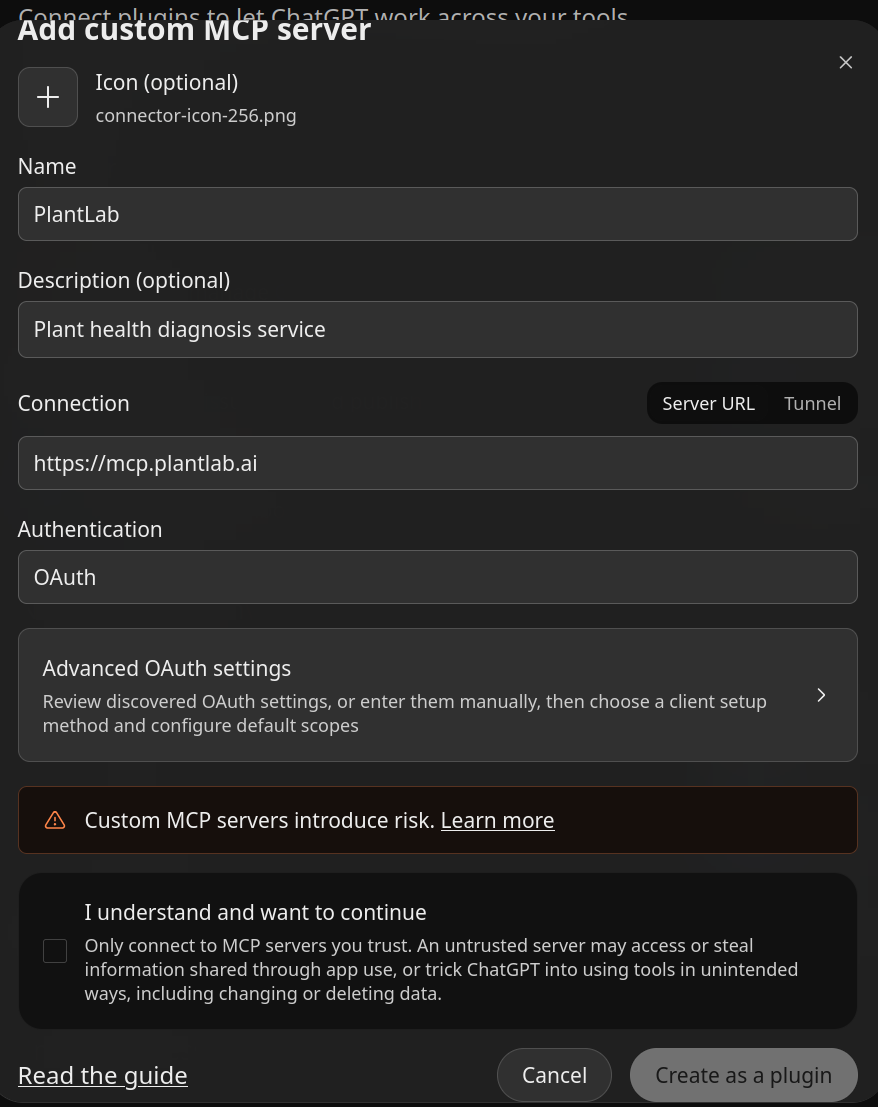
- Fill in the form. Enter PlantLab as the name and a short description, for example “Plant health diagnosis service”. Under Connection, keep Server URL and enter
https://mcp.plantlab.ai. Leave Authentication on OAuth. You do not need to open Advanced OAuth settings. - ChatGPT shows the warning “Custom MCP servers introduce risk.” Tick I understand and want to continue, then choose Create as a plugin. This warning appears for every custom server. Only connect to a server that you trust.
- ChatGPT opens a PlantLab page titled Connect PlantLab. Paste your API key and choose Allow access. The page says that access covers reading your usage and running diagnoses with your key.
- Upload a plant photo in the ChatGPT web app and ask for a diagnosis.
The connection lasts 90 days. After that, ChatGPT asks you to connect again, and you paste your key once more. To end access sooner, revoke the key in your dashboard. PlantLab then rejects every request that uses it.
Photos must be JPEG or PNG, up to 9 MB. If a photo does not reach PlantLab as a file, the assistant tells you to upload it again from the ChatGPT web app.
What a diagnosis looks like
ChatGPT calls PlantLab and shows the result in the conversation. This example is a tomato photo.
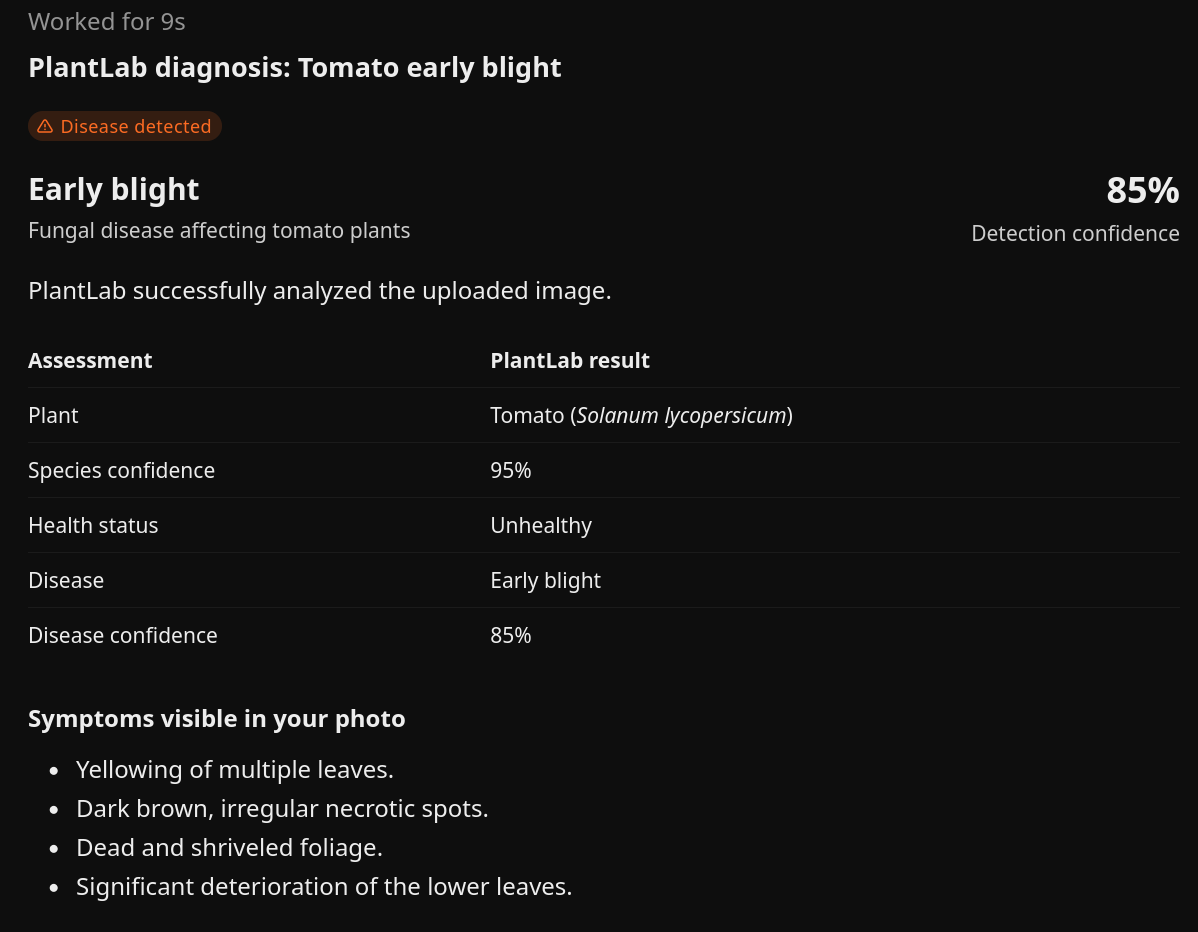
The plant, the condition, and the confidence figures come from PlantLab. The list of symptoms is the assistant’s own wording. Treat the confidence as part of the answer. A lower figure means PlantLab is less sure, and you should look at the plant yourself.
Where your photo goes
This is the one real trade-off, so read it before you connect.
When you upload a photo to ChatGPT, ChatGPT stores it on OpenAI’s servers, which run on Microsoft Azure Blob storage. Only then does PlantLab fetch the photo from that storage over HTTPS and run the diagnosis. The photo passes through ChatGPT and Microsoft’s servers before it reaches PlantLab, and their terms govern what they do with it.
PlantLab does not retain the image after the diagnosis. Diagnosis history is optional, and it stores results without the photo. The privacy post has the details.
If you do not want your photos to pass through a third party, call the API directly. Your photo then goes from your own code to PlantLab and nowhere else.
Other assistants and agents
The same server works with any MCP client that supports remote servers. Use the URL https://mcp.plantlab.ai. A client that cannot run the sign-in step can send your PlantLab API key as a bearer token in the Authorization header.
For anything that you build and run yourself, use the API. If a chat assistant already sits in the middle of your workflow, use the MCP server. The assistant then diagnoses plants the same way it uses its other tools.
Try it
PlantLab is currently free to use. Create an API key and read the API contract for the fields that each plant returns.